
TranslatePress – Translate Multilingual sites with AI Translation

About TranslatePress – Translate Multilingual sites with AI Translation
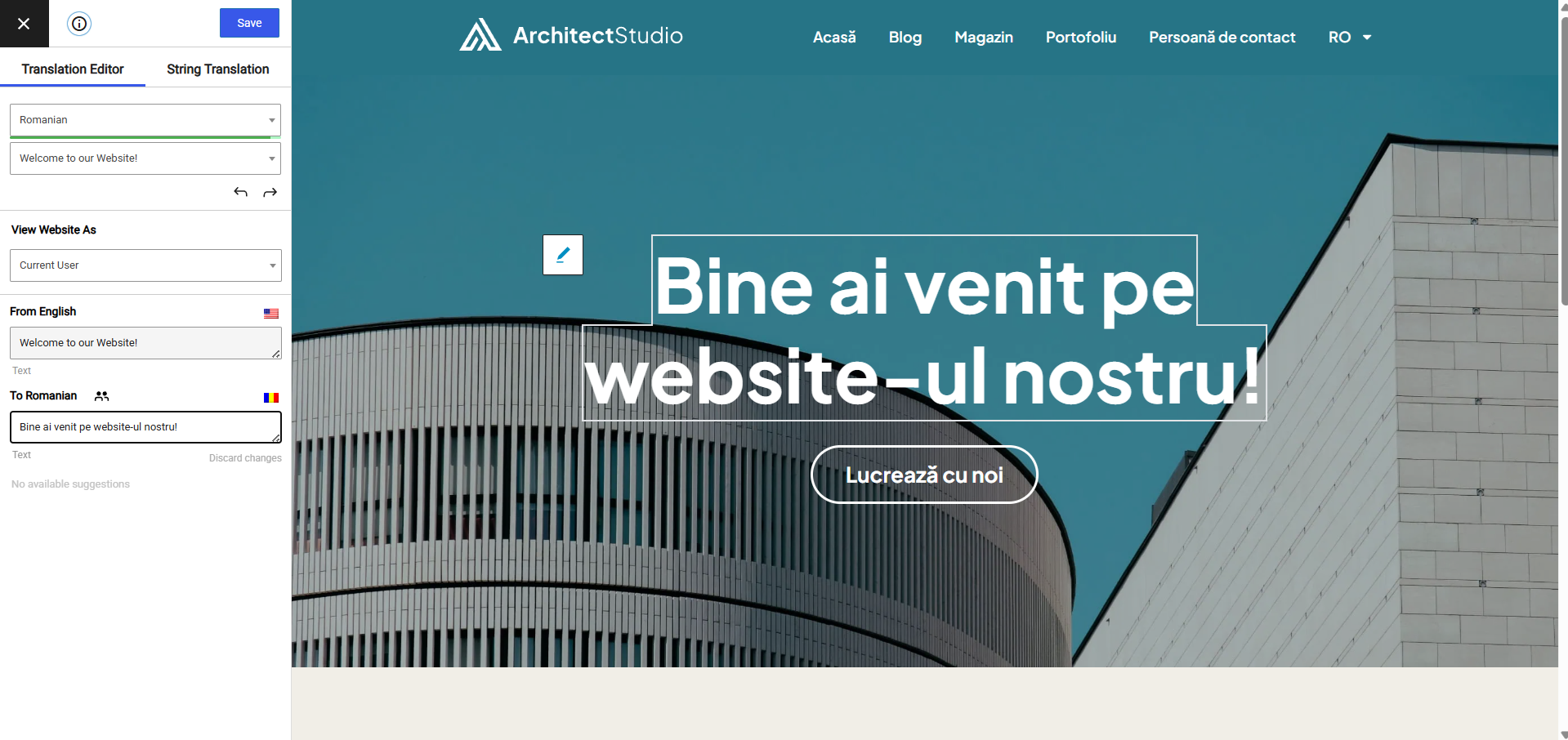
Experience a better way to translate your WordPress site and go multilingual, directly from the front-end using a visual translation interface. The built-in AI translation lets you translate automatically, then refine anything visually.
TranslatePress is a WordPress translation plugin that anyone can use.
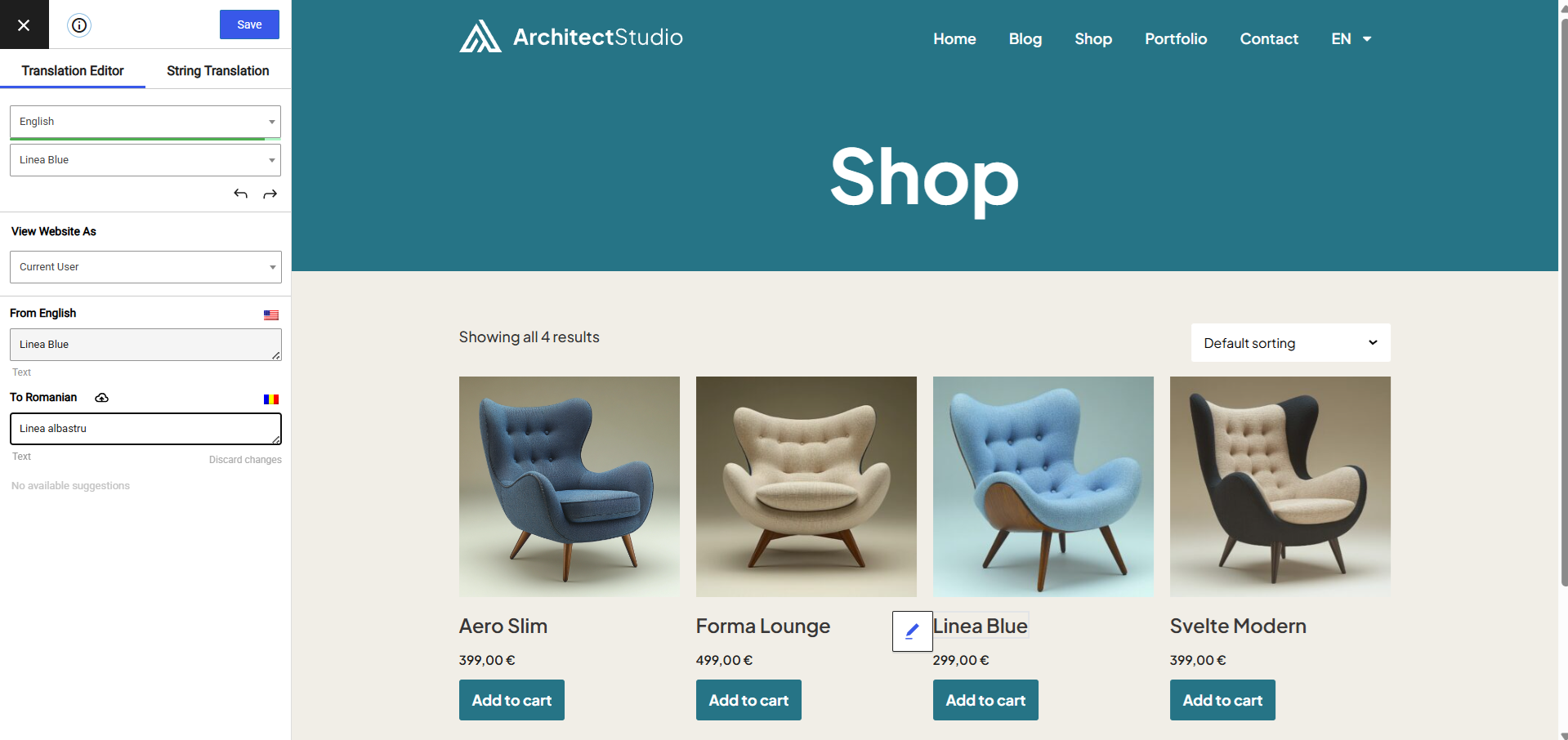
The interface allows you to easily translate the entire page at once, including output from shortcodes, forms and page builders. It also works out of the box with WooCommerce.
Built the WordPress way, TranslatePress – Multilingual is a GPL and self hosted translation plugin, meaning you’ll own all your translations, forever. It’s the fastest way to create a bilingual or multilingual site.
Multilingual & Translation Features
- Translate all your website content directly from the front-end, in a friendly user interface (translations are displayed in real-time).
- Fully compatible with all themes and plugins
- Live preview of your translated pages, as you edit them.
- Automatic AI translation support through TranslatePress AI Free, with a 2,000 AI words limit. Use our free Website Word Count to find how many words your website contains.
- Integrates with Google Translate, allowing you to set up unlimited automatic translations using your own Google API key.
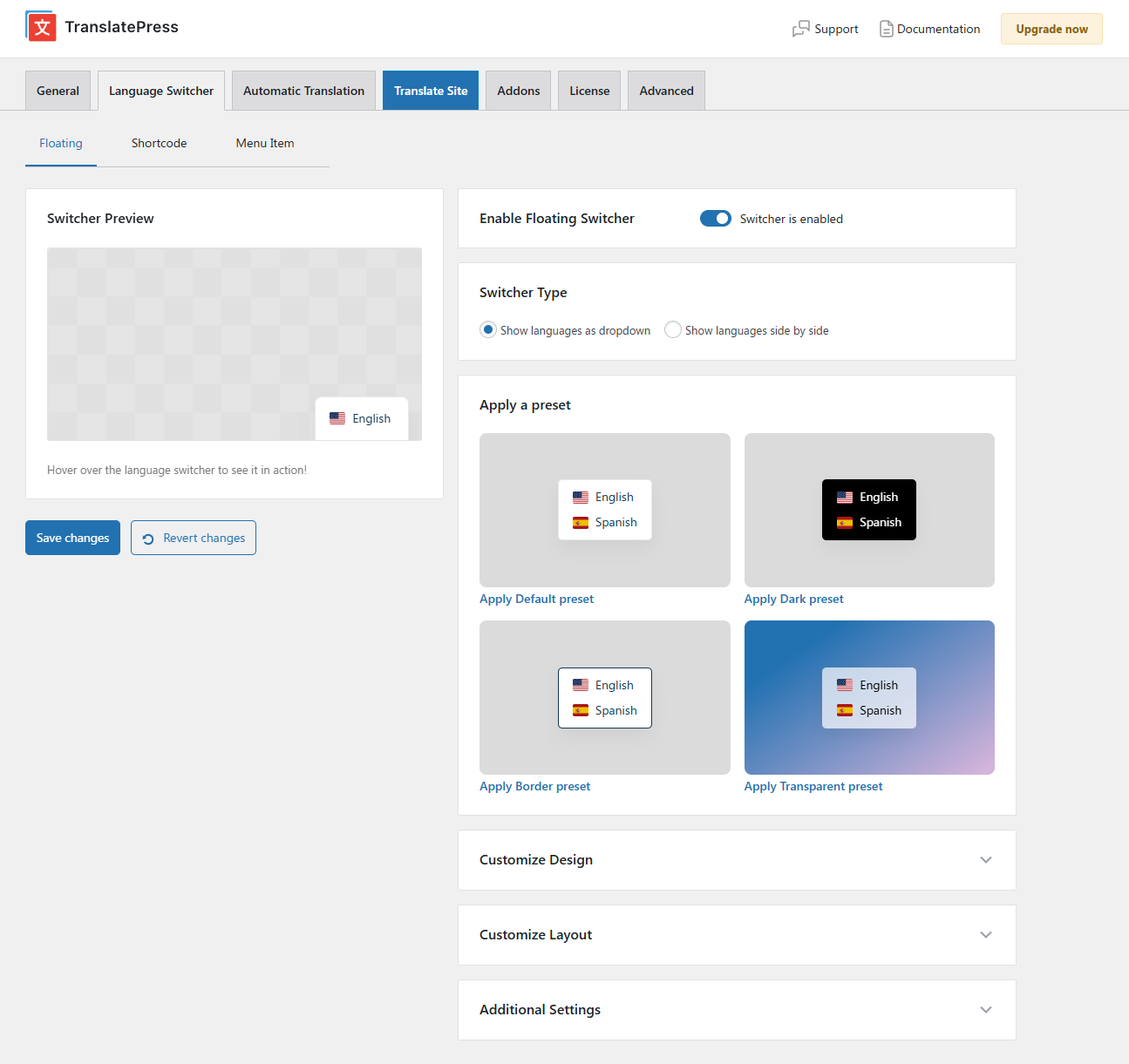
- Fully customizable language switcher that you can display as a menu item, a floating dropdown, or place anywhere else using the Language Switcher block, or the [language-switcher] shortcode.
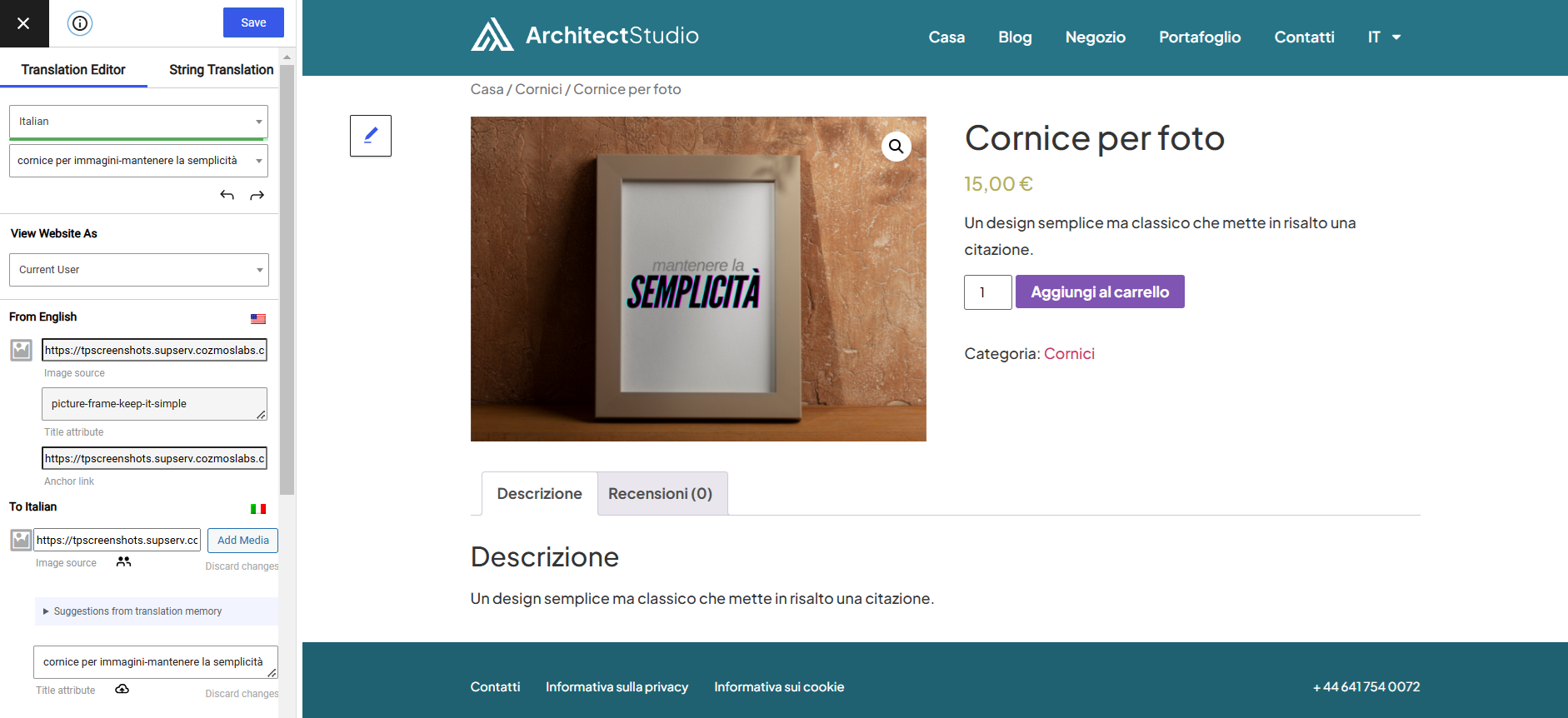
- Image translation support, for translating images, sliders and other media.
- Support for both manual and automatic translation
- Ability to translate dynamic strings (gettext) added by WordPress, plugins and themes.
- Translate larger html blocks by merging strings into translation blocks.
- Editorial control allowing you to publish your language only when all your translations are done
- Conditional display content shortcode based on language [trp_language language=”en_US”] English content only [/trp_language]
- Possibility to edit gettext strings from themes and plugins from English to English, without adding another language. Basically a string-replace functionality.
- Translate only certain paths and exclude content from being translated
- Translation Block feature in which you can translate multiple html elements together
- Native Gutenberg support, so you can easily translate Gutenberg blocks
- Out of the box WooCommerce compatibility
- Use our FREE Website Translation tool/widget to browse any website into your own language.
Note: this plugin uses the Google Translation API to translate the strings on your site. This feature can be enabled or disabled according to your preferences.
Users with administrator rights have access to the following settings:
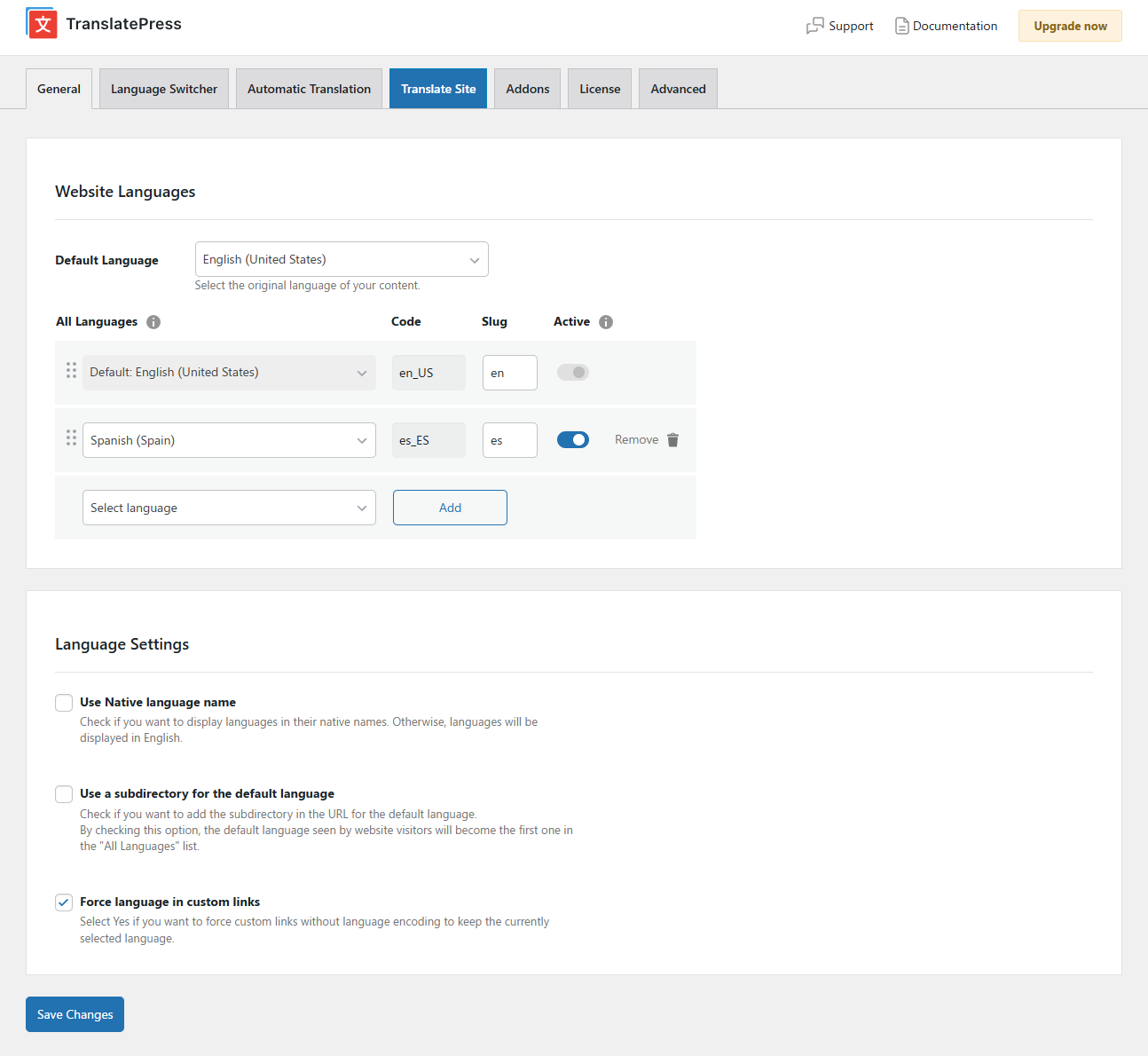
- select default language of the website and one translation language, for bilingual sites
- choose whether language switcher should display languages in their native names or English name
- force custom links to open in current language
- enable or disable url subdirectory for the default language
- enable automatic translation via Google Translate
Powerful Translation Add-ons
TranslatePress – Multilingual has a range of premium Add-ons that allow you to extend the power of this WordPress translation plugin:
Pro Add-ons (available in the premium versions only)
- Full TranslatePress AI access – automatically translate your entire website without extra platforms to sign up for, API keys, and additional translation costs. Each premium version includes a set number of AI translated words you can use to instantly translate your site, saving you both time and money.
- Extra Languages – allows you to add an unlimited number of translation languages, with the possibility to publish languages later after you complete the translation
- SEO Pack – lets you translate meta information (like page title, description, url slug, image alt tag, Twitter and Facebook Social Graph tags & more) for boosting your multilingual SEO and increase traffic. Works with all popular SEO plugins.
- Different Domain per Language – assign a different domain to each language you add (e.g. domain.de, domain.es) and improve international SEO by creating a fully local experience for your visitors
- Translator Accounts – create or allow existing users to translate the site without admin rights
- Browse as User Role – view and translate content that is visible only to a particular user role
- Navigation Based on Language – configure and display different menu items for different languages
- Automatic User Language Detection – redirect first time visitors to their preferred language based on their browser settings or IP address
- DeepL Automatic Translation – The DeepL Automatic Translation add-on lets you automatically translate your website through the DeepL API
Keyboard Shortcuts
- CTRL ( ⌘ ) + S – Save translation for the currently editing strings
- CTRL ( ⌘ ) + ALT + Z – Discard all changes for the currently editing strings
- CTRL ( ⌘ ) + ALT + (Right Arrow) – Navigate to next string
- CTRL ( ⌘ ) + ALT + (Left Arrow) – Navigate to previous string
Website
Documentation
Visit TranslatePress WordPress Translation plugin documentation page
Add-ons
Demo Site
You can test out TranslatePress – Multilingual plugin by visiting our demo site
External Services
This plugin connects to the TranslatePress AI translation service to perform automatic translations. Data sent includes page text, license key, site URL, and language settings. This may be triggered by front-end page visits, not just admin actions.
If you opt in, the plugin sends limited diagnostic and configuration data to Cozmoslabs.com to help improve the product.
Terms & Conditions: https://translatepress.com/terms-conditions/
Privacy Policy: https://translatepress.com/privacy-policy/
If you choose to use Google Translate or DeepL as your translation engine and provide your own API key, content from your site will be sent to those services for translation. This may also be triggered by front-end page visits.
Google Translate Terms of Service: https://cloud.google.com/terms/
Google Privacy Policy: https://policies.google.com/privacy
DeepL Terms of Service: https://www.deepl.com/en/pro-license
DeepL Privacy Policy: https://www.deepl.com/en/privacy
The plugin requests translation files of other plugins hosted on WordPress.org.
Select2: https://github.com/select2/select2
Quick facts
Contributors
Cozmoslabs, Razvan Mocanu, madalin.ungureanu, Cristian Antohe, Cristophor Hurduban
Also catalogued by Sourcemap Explorer's tech database
TranslatePress – Translate Multilingual sites with AI Translation is one of the WordPress plugins with a Wappalyzer fingerprint, which means Sourcemap Explorer detects it from the framework-level signals as well as the WordPress-specific /wp-content/plugins/translatepress-multilingual/ asset path. This page is the canonical entry; a deep-dive on the detection signals lives in the dedicated guide below.
How Sourcemap Explorer detects TranslatePress – Translate Multilingual sites with AI Translation
TranslatePress – Translate Multilingual sites with AI Translation sits at v3.2.6 with 400K+ active installs, a 4.7/5 rating from 1,645 reviews, tested up to WordPress 7.0.2. Its last wp.org update landed 2026-07-27 12:30pm GMT, and it has been on the directory since 2017-08-31. Whatever the install count, every site running it serves the plugin's files from the same predictable location — and that is the signal Sourcemap Explorer reads.
WordPress plugins all load assets from a predictable path: /wp-content/plugins/<slug>/. Sourcemap Explorer enumerates every such URL on the rendered page (script tags and stylesheets) and pulls the version from the ?ver= cache-buster query parameter when WordPress emits one. The slug is then cross-referenced against the wordpress.org plugin directory to attach the human-readable name, author, install count, rating and changelog you see on this page.
- 1
Find /wp-content/plugins/translatepress-multilingual/ in the Network tab
Open DevTools → Network → reload the page. Filter by "JS" or "CSS" and look for asset URLs starting with `/wp-content/plugins/translatepress-multilingual/`. Each match confirms the plugin is loading on the page. Sourcemap Explorer enumerates every plugin path automatically and lists each one in the popup's Stack tab.
- 2
Read the version from the ?ver= query string
WordPress appends the plugin version as a cache-busting query parameter to its asset URLs (`?ver=3.2.6`). Sourcemap Explorer pulls this version directly. The version on this page (3.2.6) is the latest published on wp.org — the version on a real site may lag.
- 3
Cross-reference with wp.org for human-readable metadata
Once the plugin slug is identified, fetch `https://api.wordpress.org/plugins/info/1.2/?action=plugin_information&request[slug]=translatepress-multilingual` to read the human-readable name, author, install count, rating and changelog. This page already does that for you.
Plugin ecosystem context
A WordPress multilingual plugin (WPML, Polylang, TranslatePress, GTranslate, Loco Translate). These plugins alter URL structure to include locale prefixes and emit `<link rel="alternate" hreflang="...">` tags in the head. Within that group, TranslatePress – Translate Multilingual sites with AI Translation (400K+ active installs) is tagged ai translation, automatic translation, multilingual, translate on wp.org.
Screenshots



Installation
- Upload the translatepress folder to the ‘/wp-content/plugins/’ directory
- Activate the plugin through the ‘Plugins’ menu in WordPress
- Go to Settings -> TranslatePress and choose a translation language.
- Open the front-end translation editor from the admin bar to translate your site.
FAQ
All the translation are stored locally in your server’s database.
TranslatePress – Multilingual plugin works out of the box with WooCommerce, custom post types, complex themes and site builders, so you’ll be able to translate any type of content.
TranslatePress is easier to use and more intuitive altogether. No more switching between the editor, string translation interfaces or badly translated plugins. You can now translate the full page content directly from the front-end. This makes TranslatePress a great alternative to plugins like Polylang and WPML. For more details check out this WordPress Translation Plugin Comparison: TranslatePress vs WPML vs Polylang vs Gtranslate.
After installing the plugin, select your secondary language and click “Translate Site” to start translating your entire site exactly as it looks in the front-end. To speed things up, use TranslatePress AI for automatic AI translation.
TranslatePress AI combines the best LLMs (like Gemini and GPT) and Neural Machine Translation (NMT) engines (like DeepL and Google Translate) into one integrated solution, to automatically translate your website. The system intelligently selects the most suitable engine for any given language pair and context, to ensure maximum accuracy.
TranslatePress will have little impact on your site speed. For more details see Top WordPress Translation Plugins Compared Based on Page Load Time
Yes, TranslatePress works out of the box with WooCommerce. You can use to build a multilingual WooCommerce store.
For more information please check out our documentation.
Changelog
3.2.6
- Fixed XSS security vulnerability regarding gettext wrappers. Thanks to momopon1415 and the Wordfence team for the report
- Fixed multisite add-on action security. Thanks to Jan Thiel for the report
- Fixed plural gettext translations skipped by sprintf-compatibility check
- Fixed edge cases of SQL syntax error in gettext table creation
- Keep Translation Editor interface language unchanged while switching language of the site preview
- Fixed CSS of Add Media button from Translation Editor
Older versions
Click Here to view the full changelog, or you can find it in the changelog.txt file in the plugin folder.
Keep reading on Sourcemap Explorer
Practical guides
Detection deep dives
Detected by Sourcemap Explorer
We enumerate every /wp-content/plugins/translatepress-multilingual/ path on the page, and pull the version from the ?ver= query string when WordPress emits one (wp.org currently lists v3.2.6, updated 2026-07-27 12:30pm GMT).